
Definitions
First, the basics.| Concept | Definition |
|---|---|
| database | An organized collection of structured information that allows for efficient management, retrieval, and querying. For our purposes, think of it as a collection of items organized in rows and columns – where each row is a page and each column is a piece of information about that page. |
| metadata | Data about data. It’s structured information that describes, explains, or locates a primary piece of content – making it easier to find, sort, and use. |
| Primary source | Metadata |
|---|---|
| book | author, publisher, publication date, ISBN |
| photo | timestamp, location, device |
| sender, recipient(s), timestamp, subject |
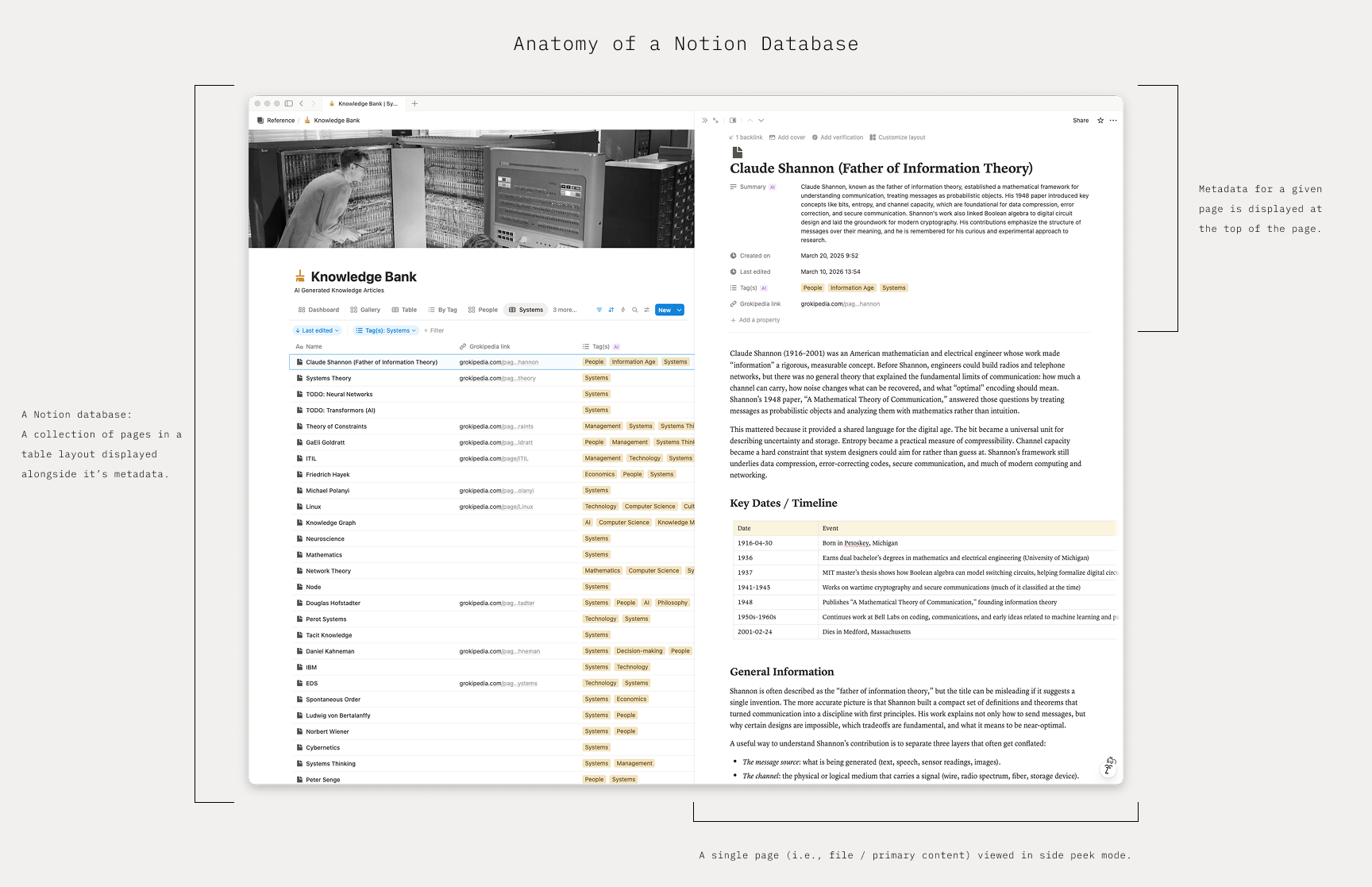 Fig. 01 – A Notion database. As you can see, the database is organized in a table format with the page name as the first column followed by metadata fields listed in additional columns. You can open and interact with a page (i.e., the primary content) from within the database. Within the page itself you will see that page’s metadata listed at the top followed by the content itself.
Why databases instead of folders?
A foundational decision in this system is that pages are organized into databases, not folders – allow me to explain. A common default is to organize digital files like physical files – into folders and subfolders. This method is a relic of the physical world where objects can only be assigned to a single location. For example, a document can only be assigned to a single folder in a file cabinet or a single page allocated to one section of a three ring binder. Thankfully, computers freed us from this constraint in the 1960s. The problem is that most never updated their mental model, so they kept organizing digitally the way they organized physically. Also, to be fair, databases weren’t the most accessible initially, but tools like Notion and Obsidian came along and changed that. Now anyone can use them. And once you get accustomed to databases, you’ll wonder how you ever managed without them. Here’s why I advocate for databases so heavily. It comes down to two main things:- The ability to assign and manage metadata for every page with ease.
- The ability to create different views based on that metadata – letting you zoom in and zoom out or slice and dice a collection however you need to.
The recipe example
Say you have a collection of 100 recipes you would like to organize digitally. Your instinct might be to throw them into a folder, or maybe create subfolders for categories like appetizers, salads, entrees, soups, and desserts. That works – to a point. Entree type (the organizing principle behind most cookbooks) is just one attribute of a recipe. What about all the others? You could also describe a recipe by:- main ingredient
- cooking time
- skill level
- season
- equipment required
- where you found it (family recipe, cooking magazine, supper club)
- recipes you’ve made vs. ones you want to try
Each entry is also a page
One thing worth noting: in a database, each row is a full page. That’s where the actual content resides. The database gives you structure – the metadata, the fields, the views. The page gives you the content itself. The full recipe. Your notes. A photo. Anything you want to capture. The two work together. I’ll explore this topic more in pages as containers (pending).Standard metadata fields
Every database in this system starts with the same core set of metadata fields. As you move through the collections, you’ll see these everywhere. They’re the foundation – and from there, each collection adds whatever additional fields it needs. Before I walk through them, a word of caution: when it comes to metadata, less is more. A common misstep I see when people set up their own databases is creating too many metadata fields upfront which is really just busywork disguised as productivity. Metadata is only useful if it’s maintained. The more fields you introduce, the more ongoing admin work you’re creating for yourself – and that’s how you end up spending more time maintaining your system than actually using it (something we want to avoid). My recommendation: start with the standard fields below. If you keep bumping into a situation where you can’t build a view you want, that’s your signal that a new field might be useful. Add it then. Not before.Created on
Maintenance: Auto-update The created on date tells you when a page first entered your system – when you had an idea, encountered a topic, or decided something was worth capturing. This field gets more valuable over time. After a year or two, you’ll start to see patterns. Clusters of pages around certain themes. Long stretches of activity in one area, then silence. Spikes that map to specific periods in your life. It becomes a record of where your attention was – and when. If you ever export a database to CSV, this is a great field to graph. You’ll see the groupings clearly. The calendar view (in Notion) gives you a similar picture inside the tool itself.Last edited
Maintenance: Auto-update Last edited tells you which pages you’ve touched most recently. Compared against the created on date, it also gives you a sense of a page’s longevity – whether something you captured years ago is still actively in use, or has sat untouched since the day you created it. I sort most of my databases by last edited date in descending order by default. Whatever I’ve touched most recently sits at the top. It’s a natural way to surface where your current focus is.Tag(s)
Maintenance: AI-generated or manual update Tags are the workhorse of metadata and a good place to layer AI into your workflow. When you’re starting out, you often don’t know yet what categories you’ll actually need. Tags let you assign labels freely without committing to a formal field structure. Over time, if you find yourself assigning the same type of tag to almost every page in a collection, that’s a sign it might be worth promoting to its own dedicated field. But until that pattern is clear, tags are sufficient. Tags are also useful for edge cases – labels that apply to a handful of pages but not the rest of the collection. You get to capture the category without bloating your metadata fields. And tags reveal cross-collection themes. In my own system, I noticed I was collecting pages related to subtraction and domestic science across my knowledge bank, books, quotes, and general notes – all in separate collections. By tagging those pages consistently, I can build a single view that pulls all of them together, regardless of which collection they live in. Finally – tags and AI work well together. My workflow: I have AI review the page content, the collection context, and my existing tags, then propose relevant labels. I review the suggestions, keep what fits, adjust what doesn’t. It reduces the cognitive load of categorization while making sure I’m not missing an applicable category I would have otherwise overlooked. To recap:- Use tags to guide you toward the attributes that actually matter across a collection.
- Use tags for edge cases that don’t warrant their own field.
- Use tags to surface themes across collections.
- Let AI suggest them, then refine.
Database views
Now here’s where everything comes together. All that metadata you’ve been assigning? This is what it’s for. A view is just a filtered, sorted, or grouped window into your database. It doesn’t move or alter your pages – it simply surfaces a specific subset based on constraints you define. For a life log, you might create a view that shows only long-form journal entries. For your knowledge bank, a view filtered to a particular theme. For your projects, a view showing only what’s actively in progress. Same underlying collection each time – different view.Because views are so easy to create and delete, only keep a handful that you regularly rely on. For anything else – a cleanup effort, a one-time export – create the view, use it, then delete it. Like metadata, less is more. Too many views clutter your navigation and slow you down.
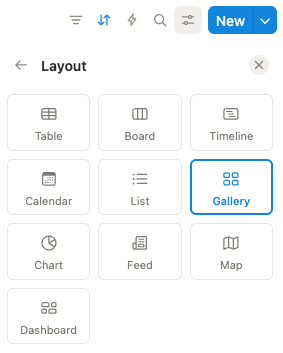
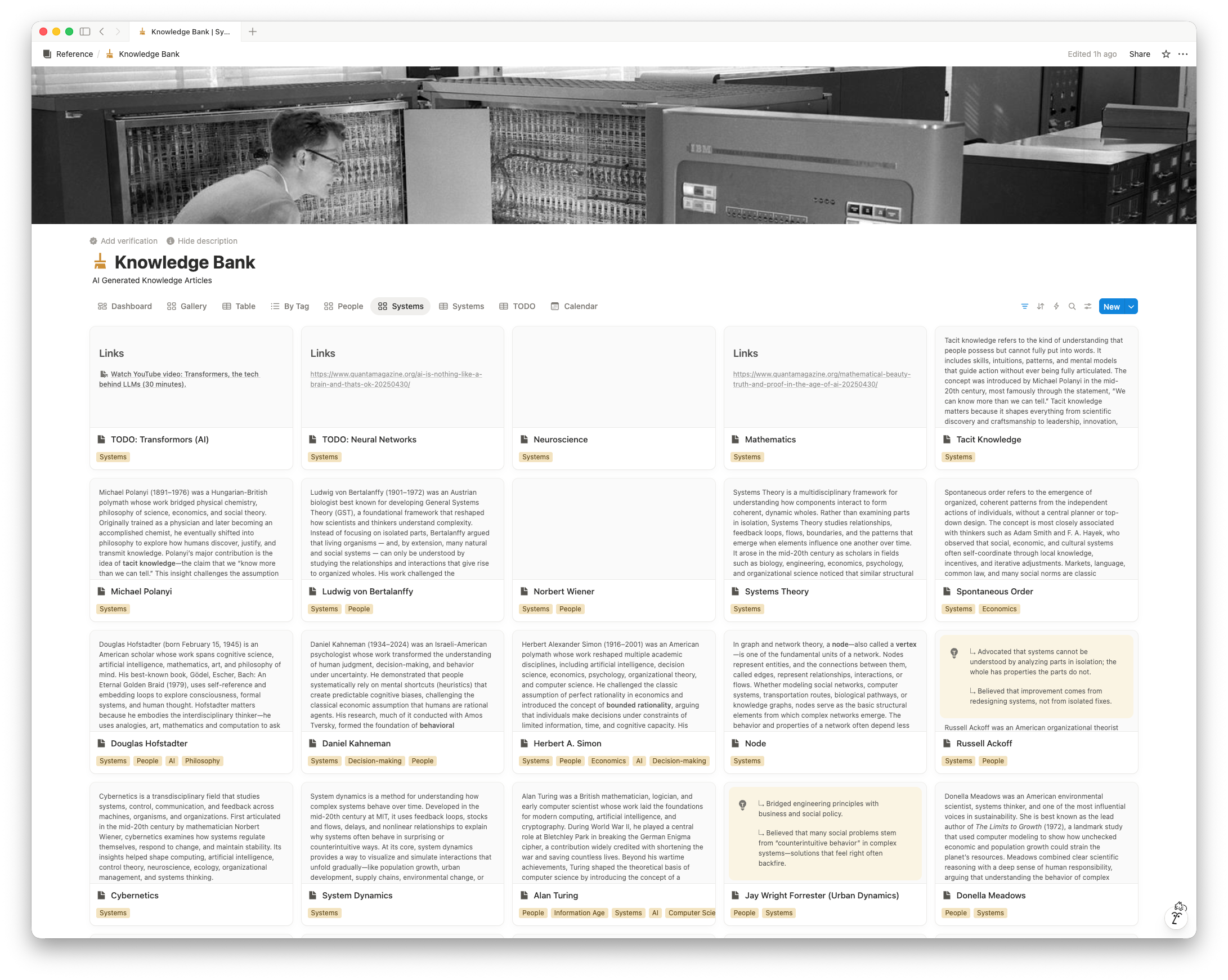 Fig. 03 – A gallery view in a Notion database – which reminds me of index cards laid out in a grid. This view is generated from the same underlying collection as illustrated in Fig. 01.
I recommend every database start with one foundational table view: all pages, all metadata, sorted by last edited in descending order to view the entirety of a collection.
Fig. 03 – A gallery view in a Notion database – which reminds me of index cards laid out in a grid. This view is generated from the same underlying collection as illustrated in Fig. 01.
I recommend every database start with one foundational table view: all pages, all metadata, sorted by last edited in descending order to view the entirety of a collection.
A master database template
As you learn your configuration preferences for databases (especially in Notion), I recommend building a master database template you can duplicate whenever you stand up a new collection. Your standard metadata fields, your default sort, your foundational all-pages view – all of it ready to go. It keeps things consistent and saves you from reinventing the wheel every time.See it in action
Reading about databases is one thing. Interacting with one is another. This is why each collection on this site includes both an interactive example and a template – so you can get a feel for how databases actually work before building your own. See the types of pages that live inside a collection, the metadata fields assigned, the views that tend to be most useful. Templates and examples can be found at the following:- Notion
- Obsidian (Pending.)
Resources
For more information, refer to each tool’s documentation:Last update: 2026.03.13